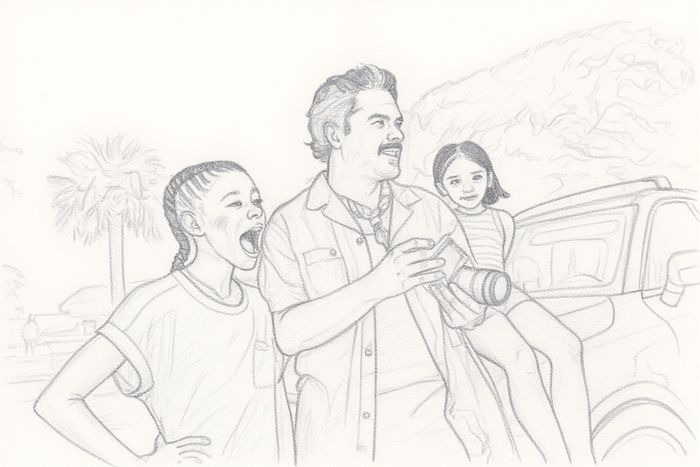
Creating a Sketch from a Photo: Complete Step-by-Step Guide (2025)
Learn everything about creating a sketch from a photo using AI tools. Step-by-step tutorial covering techniques, tools, and tips for converting photos into beautiful sketches. Free and easy to use.
Introduction
Creating a sketch from a photo has never been easier. Whether you're an artist looking to speed up your workflow, a teacher creating educational materials, or someone who wants to turn memories into artistic keepsakes, AI-powered photo to sketch conversion delivers professional results in seconds.
This comprehensive guide walks you through everything you need to know about creating sketches from photos - from choosing the right images to understanding different sketch styles and getting the best results.
Why Create Sketches from Photos?
Before diving into the how-to, let's explore why people are creating sketches from photos:
Creative Applications
Personal & Artistic Projects
- Create custom artwork from your favorite photos
- Design unique gifts for friends and family
- Make personalized greeting cards and invitations
- Build a portfolio of sketch art without drawing skills
- Preserve memories in an artistic format
Professional Use Cases
- Speed up concept art development
- Generate reference materials for hand drawing
- Create social media content that stands out
- Design merchandise and print-on-demand products
- Develop storyboards and visual presentations
Educational Benefits
Teachers and students use photo-to-sketch conversion for:
- Creating custom coloring worksheets
- Developing visual learning materials
- Teaching art concepts and techniques
- Producing printable educational resources
- Making lesson plans more engaging
According to creative professionals, AI sketch tools save an average of 2-3 hours per image compared to traditional manual sketching methods.
What Makes a Good Photo for Sketching?
Not all photos convert equally well into sketches. Here's what works best:
Photos That Convert Well
✅ Best Photo Types:
- Clear, well-lit images with good contrast
- Photos with distinct subjects and clean backgrounds
- Portraits with visible facial features
- Landscapes with clear elements (trees, buildings, water)
- Objects with defined edges and shapes
- High-resolution images (at least 1000px wide)
❌ Photos to Avoid:
- Blurry or out-of-focus images
- Very dark or overexposed photos
- Busy backgrounds with too many details
- Low-resolution or heavily compressed images
- Photos with extreme shadows or highlights
Subject Matter Guide
| Subject Type | Conversion Quality | Best Style |
|---|---|---|
| Portraits | Excellent | Pencil sketch |
| Pets & Animals | Excellent | Pencil or charcoal |
| Buildings | Very Good | Architectural line art |
| Landscapes | Good | Charcoal or pencil |
| Still life | Very Good | Pencil sketch |
| Group photos | Good | Cartoon sketch |
Step-by-Step: Creating a Sketch from a Photo
Follow these steps to create beautiful sketches from any photo:
Step 1: Choose Your Photo
Start with the right image:
- Select a high-quality photo - The better your source image, the better your sketch
- Check the resolution - Aim for at least 1000x1000 pixels for best results
- Consider the subject - Portraits and single subjects work better than crowded scenes
- Verify the lighting - Well-lit photos with good contrast convert best
Quick tip: If your photo is too dark or washed out, adjust brightness and contrast before converting to get better sketch results.
Step 2: Select Your Sketch Style
Different styles serve different purposes:
Pencil Sketch
- Soft, natural appearance
- Great for portraits and pets
- Professional and timeless look
- Best for: Personal artwork, portfolios, framing
Charcoal Sketch
- Bold, dramatic effect
- High contrast with deep shadows
- Artistic and expressive
- Best for: Dramatic portraits, artistic projects, social media
Cartoon Sketch
- Fun, playful style
- Simplified features
- Energetic and eye-catching
- Best for: Kids' content, social media, gifts, avatars
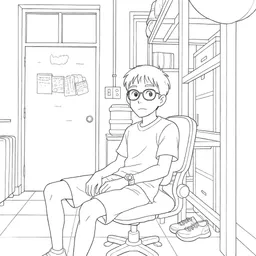
Coloring Book Style
- Clean outlines only
- Ready for coloring
- Simple and clear
- Best for: Educational materials, kids' activities, templates
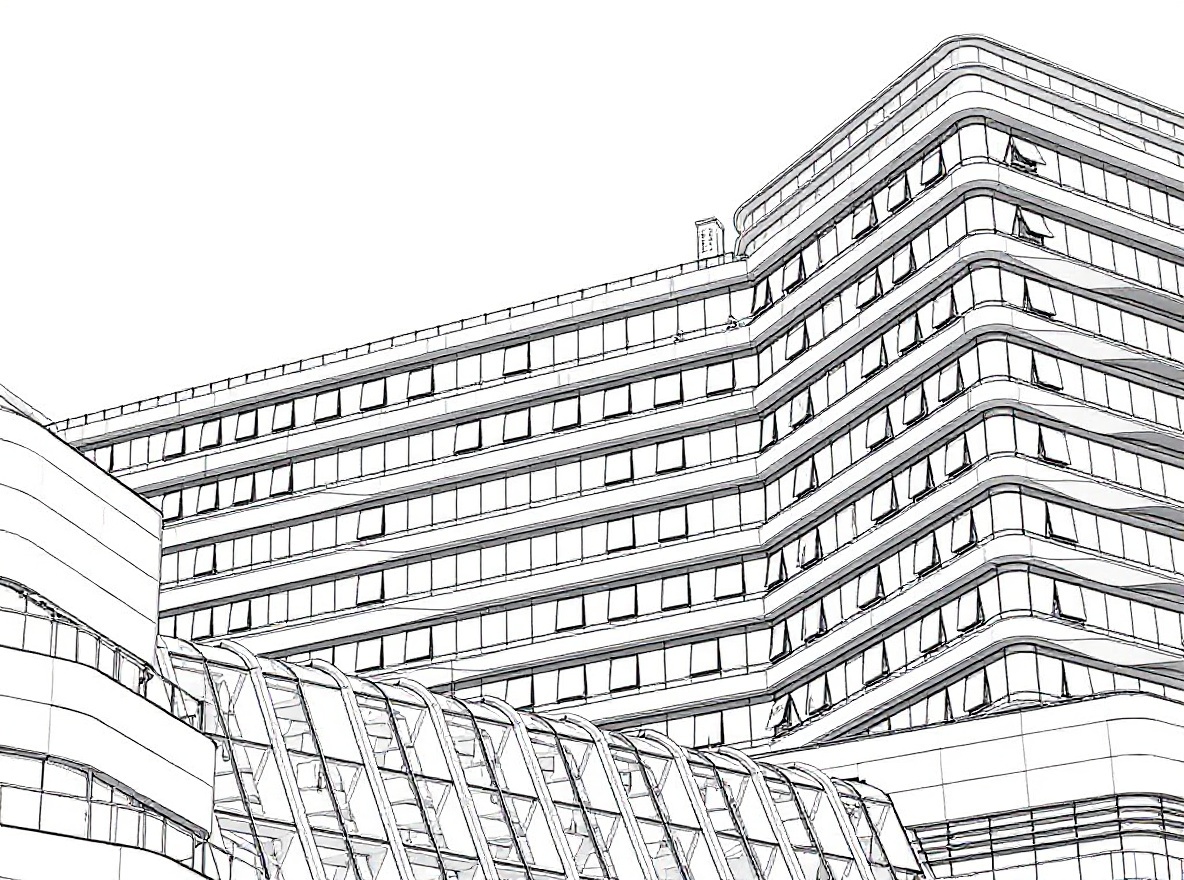
Architectural Line Art
- Precise, technical lines
- Clean and minimal
- Professional appearance
- Best for: Buildings, technical subjects, modern art
Aesthetic Line Art
- Continuous, flowing lines
- Minimalist and elegant
- Sophisticated look
- Best for: Fashion, editorial, minimalist art
Step 3: Upload and Convert
The conversion process is simple:
- Upload your photo to the conversion tool
- Choose your preferred sketch style from the available options
- Click generate and wait 5-15 seconds
- Preview the result to see if you're happy with it
Most AI tools process images in under 10 seconds, giving you instant results.
Step 4: Download and Use
Once you're satisfied with your sketch:
- Download in high resolution - Select HD or highest quality available
- Choose the right format - PNG for transparency, JPG for smaller file size
- Save for your purpose - Print quality needs 300 DPI minimum
Step 5: Optional Enhancements
Take your sketch further:
- Add color - Import into a drawing app and add color to line art
- Combine styles - Mix multiple sketch versions for unique effects
- Frame it - Print and frame for physical artwork
- Edit details - Touch up in Photoshop or other editors if needed
Choosing the Right Style for Your Purpose
Match your sketch style to your end goal:
For Social Media Posts
- Charcoal sketch - High contrast grabs attention in feeds
- Cartoon sketch - Fun and shareable
- Aesthetic line art - Elegant for lifestyle content
For Printing & Framing
- Pencil sketch - Classic, timeless appeal
- Charcoal sketch - Gallery-worthy dramatic effect
- Architectural line art - Modern, minimalist wall art
For Kids & Education
- Coloring book style - Interactive and engaging
- Cartoon sketch - Friendly and approachable
- Pencil sketch - Clear for learning
For Professional Use
- Pencil sketch - Professional portfolios
- Architectural line art - Design presentations
- Aesthetic line art - Editorial and fashion
Common Mistakes to Avoid
Learn from these common pitfalls:
Technical Mistakes
Using Low-Quality Photos
- Problem: Results in pixelated or unclear sketches
- Solution: Always use high-resolution source images
Wrong Style Selection
- Problem: Style doesn't match the subject matter
- Solution: Use pencil for portraits, line art for buildings
Ignoring Lighting
- Problem: Dark photos produce muddy sketches
- Solution: Adjust photo brightness before converting
Composition Mistakes
Too Busy Background
- Problem: Sketch looks cluttered and confusing
- Solution: Crop or blur background before converting
Multiple Subjects
- Problem: Sketch loses focus
- Solution: Crop to single subject for best results
Poor Framing
- Problem: Subject is cut off awkwardly
- Solution: Re-crop photo with proper spacing
The most common mistake is using photos that are too dark or have poor contrast. Always preview and adjust your photo before converting for the best sketch results.
Real-World Examples
Example 1: Family Portrait Sketch
Situation: Sarah wants to create unique gifts for her parents' anniversary.
Process:
- Started with a high-quality family photo
- Chose pencil sketch style for a classic look
- Downloaded HD version
- Printed on matte paper and framed
Result: Personalized artwork that became a cherished gift, costing under $5 vs $200+ for commissioned artwork.
Example 2: Pet Portrait
Situation: Mike wants to immortalize his dog in artwork.
Process:
- Used a well-lit photo of his dog
- Tried both pencil and charcoal styles
- Selected charcoal for more dramatic effect
- Downloaded and shared on social media
Result: Beautiful pet portrait that got 10x more engagement than regular pet photos.
Example 3: Social Media Content
Situation: A lifestyle blogger needs unique content for Instagram.
Process:
- Converted travel photos to aesthetic line art style
- Created a consistent visual theme
- Posted alongside original photos
Result: 40% increase in post engagement and a distinctive visual brand.
Example 4: Educational Worksheets
Situation: A teacher needs custom coloring pages for classroom activities.
Process:
- Used photos related to lesson topics
- Converted to coloring book style
- Printed as worksheets for students
Result: Custom educational materials at zero cost vs buying commercial worksheets.
Tips for Better Sketch Results
Before Converting
Photo Preparation:
- Crop tightly around your subject
- Adjust brightness if photo is too dark
- Increase contrast slightly for better line definition
- Remove distracting background elements if possible
Subject Selection:
- Choose photos with clear subject focus
- Prefer natural lighting over harsh artificial light
- Ensure faces are clearly visible in portraits
- Select images with good edge definition
After Converting
If You're Not Happy:
- Try a different sketch style
- Adjust the original photo's settings
- Crop differently to change composition
- Use a higher resolution source image
For Professional Results:
- Always download the highest resolution available
- Test print on paper before final printing
- Consider professional printing for framing
- Use matte paper for authentic sketch feel
Style-Specific Tips
Pencil Sketch:
- Works best with evenly lit subjects
- Great for portraits and close-ups
- Print on textured paper for authentic feel
Charcoal Sketch:
- Embrace dramatic lighting and shadows
- Perfect for moody, artistic pieces
- Displays well in black frames
Line Art Styles:
- Require clear subject outlines
- Work best with simple, clean compositions
- Perfect for minimalist aesthetic
Pro tip: Create multiple versions with different styles, then choose your favorite. Most conversion tools are fast enough that testing takes less than a minute.
Tools and Technology
AI vs Traditional Methods
| Aspect | AI Conversion | Hand Sketching | Photo Filters |
|---|---|---|---|
| Time | 10 seconds | 1-3 hours | 1 minute |
| Skill needed | None | Years | Basic software |
| Cost | $0-1 per image | $50-200 if commissioned | Free |
| Quality | High, consistent | Variable | Low |
| Customization | Style presets | Unlimited | Limited |
What Makes AI Better?
Speed: Create professional sketches in seconds vs hours
Consistency: Same quality every time, no variation
Accessibility: No drawing skills required
Affordability: Free or pennies per image vs hundreds for commission
Flexibility: Try multiple styles instantly
Frequently Asked Questions
How long does it take to create a sketch from a photo?
With AI tools, the actual conversion takes 5-15 seconds. Including upload and download time, you can create a sketch from start to finish in under a minute.
Can I use the sketches commercially?
If you own the original photo, you typically own rights to the sketch. Always check your conversion tool's terms of service for specific commercial usage rights.
What resolution should I use?
For screen use (social media, websites), 1000-2000px is fine. For printing, use the highest resolution available, ideally 300 DPI at your desired print size.
Which style is most popular?
Pencil sketch is the most versatile and widely used, followed by charcoal sketch for dramatic effect and coloring book style for interactive content.
Can I edit the sketch after creation?
Yes! Download the sketch and import it into any image editor (Photoshop, GIMP, Procreate) to make adjustments, add color, or refine details.
Do I need to crop my photo first?
While not required, cropping to focus on your subject usually produces better results. Remove distracting backgrounds and frame your subject nicely.
What if I don't like the result?
Try a different style, adjust your original photo (brightness, contrast), or crop differently. Most people find a style they love within 2-3 attempts.
Can I create sketches from old photos?
Absolutely! As long as the photo is reasonably clear, you can convert old family photos, vintage images, and historical photographs into sketches.
Conclusion
Creating a sketch from a photo has evolved from a time-consuming artistic skill to an accessible, instant process thanks to AI technology. Whether you're making gifts, developing content, or exploring creative projects, you can now transform any photo into beautiful sketch art in seconds.
Key Takeaways:
- ✅ Choose clear, well-lit photos for best results
- ✅ Match sketch style to your intended use
- ✅ Use high-resolution images for printing
- ✅ Experiment with different styles - it's fast and easy
- ✅ No drawing skills needed - AI handles everything
Quick Action Steps:
- Select a favorite photo
- Choose a sketch style that matches your purpose
- Upload and convert (takes 10 seconds)
- Download and use your new sketch artwork
Ready to start creating sketches from your photos? Try converting your first image and discover how easy it is to turn ordinary photos into extraordinary sketch art.
Author
Categories
More Posts
How to Turn Photos into Coloring Pages in 2025 (Free + AI Tools)
Learn how to convert photos into coloring book pages using AI tools. Perfect for creating custom coloring books, tattoo references, educational materials, and personalized gifts.
Turn Facade Photos into Architectural Drawings with AI - Complete Guide 2025
Learn how to turn facade photos into professional architectural drawings using AI. Transform building photos into sketch renderings in seconds. Perfect for presentations, concept development, and portfolio work.